Remove an object from a photo
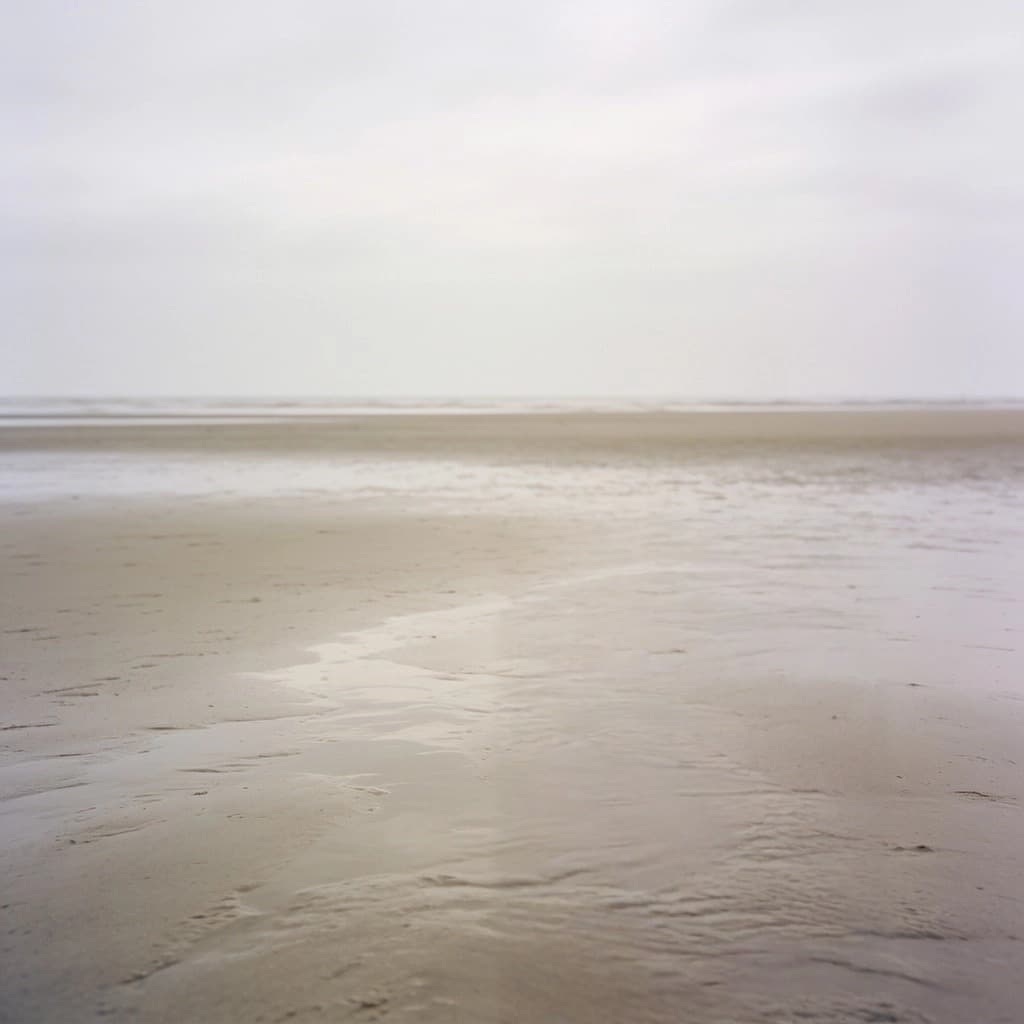
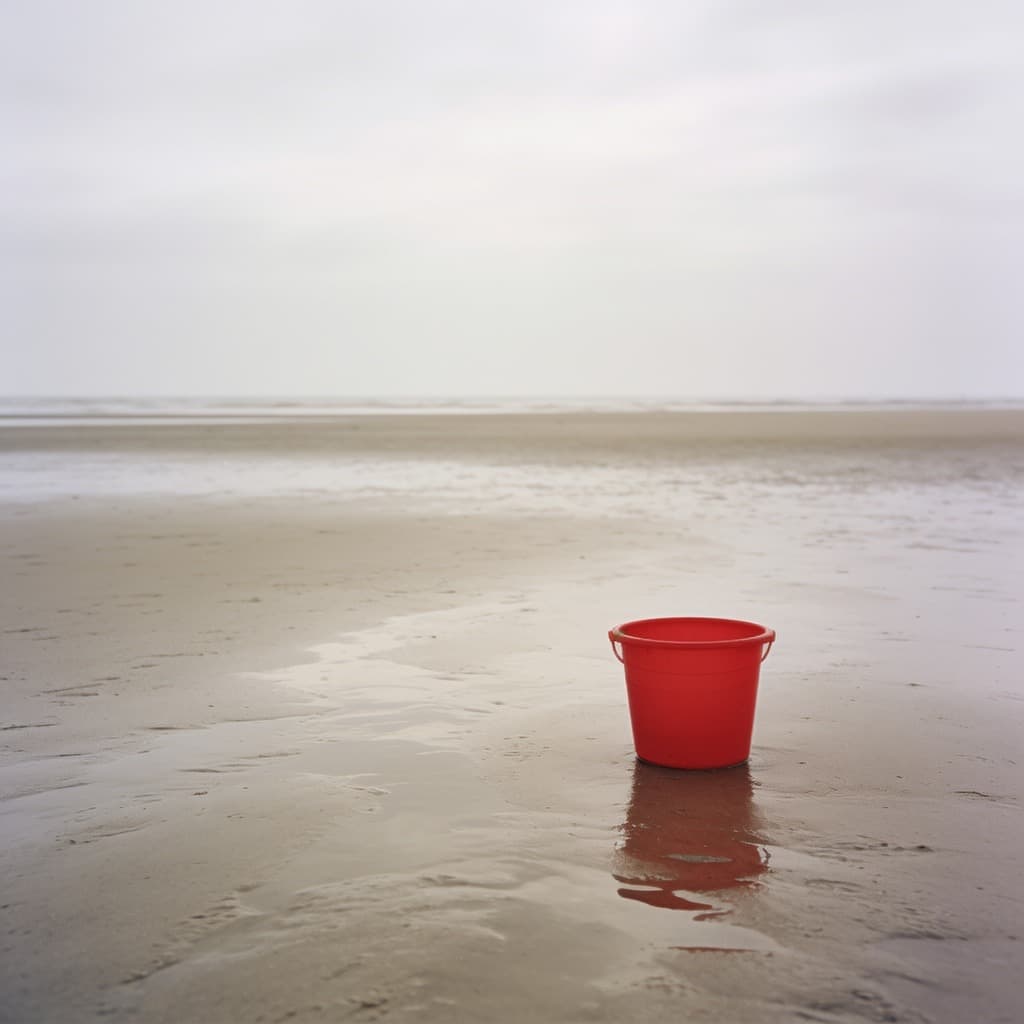
Drop the photo in, paint over the thing you want gone, and it is taken out — with the wall, the grass or the sky behind it filled in as it would have been.
Common questions
- How do I mark what should go?
- Paint over it with the brush. Cover the whole thing and a little of its edge, including its shadow where it has one: a shadow left behind is what gives a removal away. The eraser takes a marking back if you go too far.
- How large can the thing be?
- The more of the picture is painted over, the more the model has to invent, and invention is where it starts to look wrong. A person on a beach comes out cleanly; the whole middle of the photograph does not.
- How many a day?
- Five without an account. With a free account there is no daily limit and each image costs one credit.
- Can I do more than one thing at once?
- Paint over all of them before you press Start — the brush is not limited to one area. For anything beyond removal, open the result in the studio, where the same brush also does replacements.
More tools
- Image upscalerMake a small picture larger without it going soft.
- Background removerCut the subject out and keep real transparency.
- Old photo restorationTake out scratches, creases and dust.
- Photo colorizerPut colour into a black and white photograph.
- Image resizerSet a width or a height, or pick a ready-made size for Instagram, LinkedIn and YouTube.
- Image cropperDrag a crop box, or lock it to a square, 16:9 or a story format.
- Image converterJPG, PNG and WebP, in any direction, with HEIC and AVIF read as well.
- Image compressorMove the quality slider and see the file size before and after.
- HEIC to JPGTurn iPhone photos into a JPG that opens everywhere.
- HEIC to PNGTurn iPhone photos into PNG, with every pixel kept as it is.
- Image combinerPut two pictures into one scene.